Deploy from GitHub on Every Push — No Workflow File
Deploy from GitHub on Every Push — No Workflow File
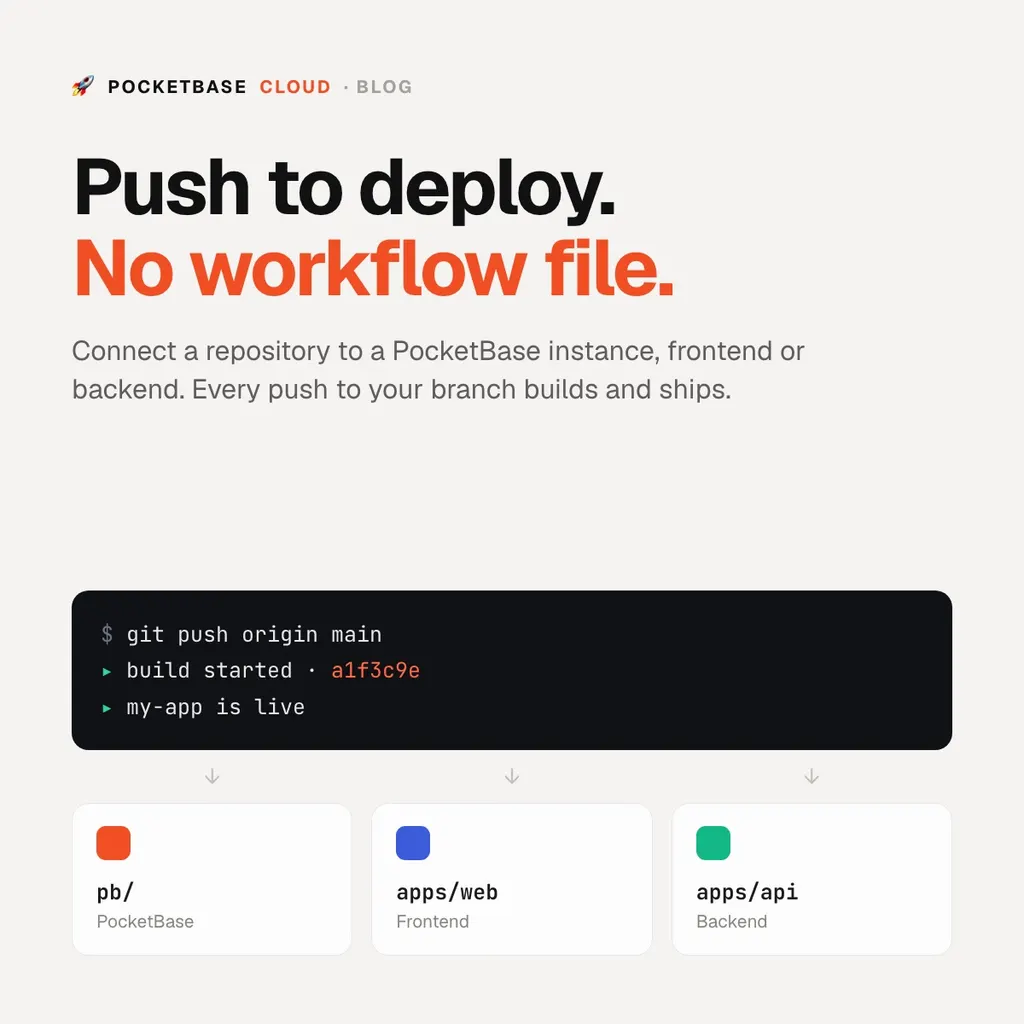
You can now connect a GitHub repository to a PocketBase instance, a frontend or a backend, and every push to the branch you pick builds and deploys it. There is no workflow file to write and no token to paste into GitHub secrets. It’s the push-to-deploy you’d expect from Heroku, Render or Vercel, for the whole stack, at a flat price.
A month ago I shipped one-step GitHub Actions deploys.
That’s still the right tool when you want tests or custom build steps before a
deploy. But most apps don’t need a pipeline — they need “I pushed to main,
so main is live.” That shouldn’t take a YAML file.
How it works
The portal installs the PocketBase Cloud GitHub App on the repositories you choose. When you push, the app reads the pushed commit and hands it to the same build pipeline an upload goes through: same build servers, same deployment history. Nothing about a GitHub deploy is special once it’s past the webhook.
Setting it up:
- Open the project’s PocketBase, Frontends or Backends tab and click Deploy from GitHub — or, for something already running, open its Settings and click Connect a repository.
- The first time, click Install GitHub App and pick which repositories PocketBase Cloud may read.
- Choose the repository, the Branch (defaults to
main) and, for a monorepo, the Root directory of this app. - Click Connect and Deploy.
The first build starts straight away. After that:
git push origin mainand a new deployment appears in the resource’s history, with the commit linked back to GitHub.
It reads the repository before it builds
Before connecting, the portal looks at the repository to work out what it is —
a PocketBase instance, a frontend or a backend, and for a backend, which
runtime. It checks pbc.json first, then files like package.json.
If it can’t tell, it says so rather than guessing silently. When a runtime
had to be suggested by a model, it’s labelled AI-suggested, and the portal
offers a pbc.json to commit so the next deploy doesn’t guess at all. And if
you try to connect a frontend repository to a backend, it refuses and offers
to deploy it as a frontend instead — that mistake is much cheaper to catch
before the first build than after it.
Monorepos
One repository, several apps: connect each resource to the same repository
with a different Root directory — apps/web for the frontend, apps/api
for the backend, pb for the PocketBase instance. Each one deploys from its
own directory on push.
When you don’t want every push to ship
Switch Deploy on every push off and the connection stays, but nothing deploys until you click Deploy Now on the resource’s Settings page. That’s useful for a production instance you want to release by hand while staging follows the branch.
If a push doesn’t deploy when it should — the app lost access to the repository, or the branch was renamed — the repository card says why and how to fix it, instead of failing quietly.
The trade-offs
- The platform builds, not your workflow. If you need tests to pass before deploying, or a build step the platform doesn’t run, use GitHub Actions instead. Pick one per resource, or every push deploys twice.
- Connecting happens in the portal. Installing a GitHub App runs through
GitHub in the browser, so there’s no
pbccommand for it.pbc deploystill ships whatever is on your machine, alongside the connection. - Backends are Pro. PocketBase instances and frontends deploy from GitHub on every plan; backends need Pro. See pricing.
Try it
Open a project, click Deploy from GitHub, and push. The full walkthrough, including repository settings and what each warning means, is in Deploying from GitHub. If you’re deploying a whole stack at once, start with Deploy a full-stack app.