Continuous Backup: Restore PocketBase to Any Point in the Last 7 Days
Continuous Backup: Restore PocketBase to Any Point in the Last 7 Days
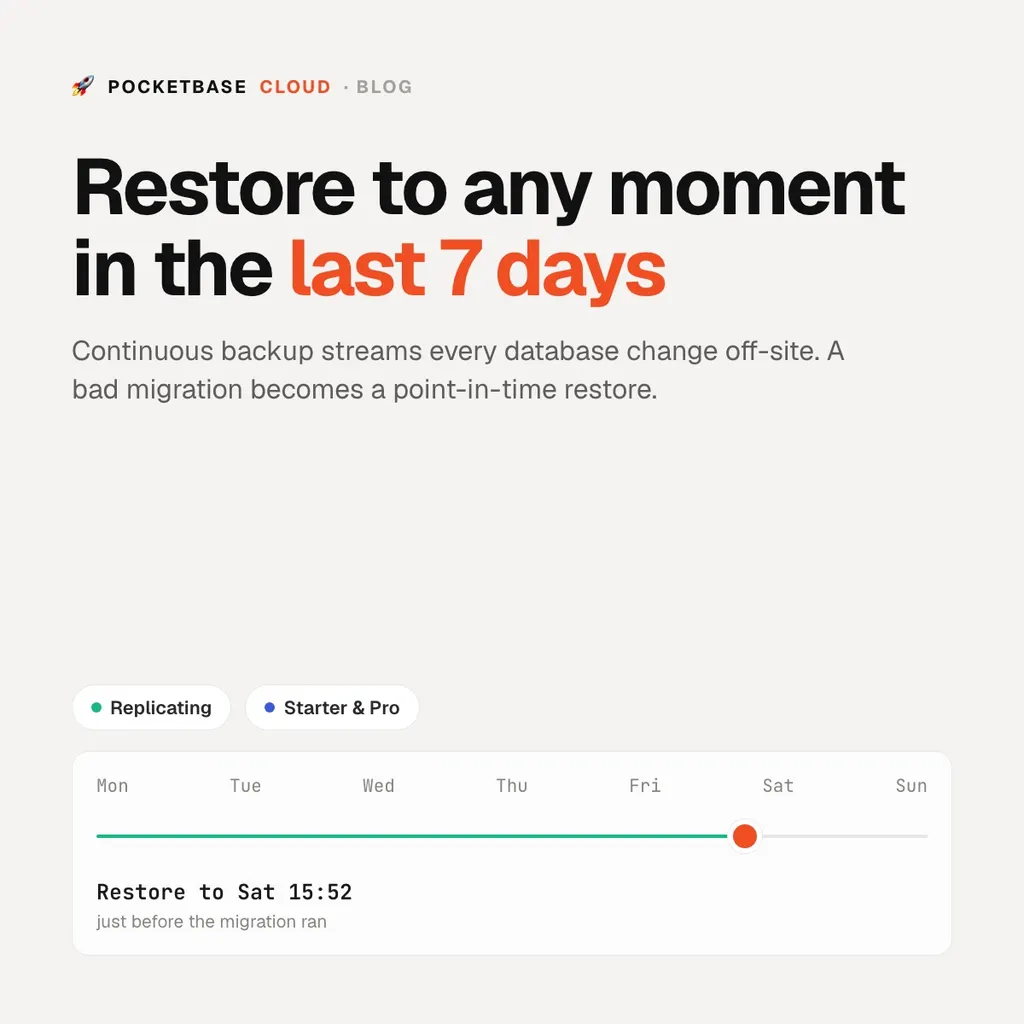
A nightly backup answers the question “what did my database look like last night?” That’s rarely the question you have. The question you have at 4pm is “what did it look like at 3:52, just before that migration ran?” — and a nightly backup’s honest answer is “somewhere between 16 hours ago and never.”
Continuous backup answers the real question. On Starter and Pro, every change to your PocketBase database is copied off-site as it happens, and you can put the database back to any moment in the last 7 days from the portal.
What goes wrong, and when
Data on a PocketBase app usually gets damaged in one of three ways:
- A migration that did more than you meant. A dropped field, a rewritten column, a relation retargeted the wrong way.
- A hook with a bug. It runs on every update, returns 200, and quietly writes the wrong thing for an hour before anyone notices.
- A human. A delete in the admin panel on the wrong collection, or the right collection in the wrong environment.
None of these announce themselves. You find out later, and “later” is exactly when a nightly snapshot hurts: you either lose everything written since the snapshot, or you spend an afternoon stitching records back together by hand.
How it works
Under the hood it’s Litestream, which reads the database’s write-ahead log and ships changes to object storage on a different machine from your instance. Snapshots are taken periodically and the changes in between are kept, so any moment in the window can be rebuilt: the latest snapshot before that moment, plus every change up to it.
Two things follow from that design and are worth saying plainly:
- Restore points follow your writes. A new point appears only when the database changes. An instance that nobody has written to since Tuesday shows nothing newer than Tuesday, because Tuesday is the current state.
- It’s close to live, not literally live. Changes are pushed off-site about once a minute. For the common case — you broke the data and the server is fine — that doesn’t matter, because you pick a moment before the mistake. If the server itself dies, the last minute or so of writes may not have left it yet.
Restoring
Restore lives in the portal, on purpose. Open the instance, click Continuous Backup in the sidebar, open Restore to a Point in Time, pick a day and a time, and confirm. The instance stops, its database is replaced with the state at that moment, and it starts again.
That’s a destructive action — anything written after the moment you pick is
gone — which is why there’s no pbc command for it. You should be looking at
the available restore points when you choose one, not typing a timestamp from
memory.
The CLI covers the rest:
pbc pocketbase continuous-backup status --name my-app
pbc pocketbase continuous-backup enable --name my-app
pbc pocketbase continuous-backup disable --name my-app
The limits
- It’s the database, not your uploads. Records, collections, schemas, users, auth settings, API rules and superusers are all covered. Uploaded files live next to the database, not inside it, so a restore doesn’t roll them back. Keep taking the standard PocketBase backup from Settings → Backups for those, or store files in an S3-compatible bucket — see File Uploads.
- It’s off until you turn it on. It’s opt-in per instance, so check the badge on the instances you care about.
- Turning it off deletes the restore points. Switching it off stops replication and permanently removes everything already copied off-site. The portal and the CLI both say so before you confirm. If you want to keep the points, leave it on.
- Starter and Pro only. If an instance moves off a paid plan, replication stops, but the points already copied stay restorable until they age out. Upgrade again and it resumes. See Plans and Billing.
Turn it on
Open any Starter or Pro instance in the portal, click Continuous Backup, and flip the switch. The badge reads Replicating once changes are streaming off-site.
Step-by-step for both portal and CLI: Continuous Backup. If you’d rather restore a regular backup into a fresh instance and compare side by side, that still works too: Restore a backup into a new instance.